How to regain control of AI agents in Microsoft 365

AI is everywhere. Recent advances in technology and the IT industry’s focus have meant that AI has been finding its way into all sorts of products and services, both existing and new. Microsoft is no exception and you can find AI assistants and enhancements across many products. Copilot is the most visible brand for AI-driven Microsoft features and experiences.
One area growing particularly quickly is AI agents. These are chat-based assistants or bots designed to answer questions, automate tasks, and help users interact with information more efficiently inside your organisation.
Not too long ago, most AI governance conversations centred around a simple question: “Should we enable Copilot at all?” That conversation has quietly shifted. Today, the bigger challenge for many organisations is understanding what happens when users start building their own AI agents and whether the right controls are in place to stop things becoming chaotic, risky, or difficult to manage.
What are AI agents?
Microsoft 365 now makes it surprisingly easy for everyday users to create and deploy AI agents through tools like Microsoft Copilot Studio and Copilot Studio Lite, which is accessible directly from Copilot Chat within Teams and the browser.

These agents can:
- Connect to SharePoint data
- Send emails
- Trigger Power Automate workflows
- Call external APIs
- Perform actions on behalf of users
The potential productivity gains here are huge. Done well, agents can remove repetitive tasks, speed up access to information, and help teams work far more efficiently.
But like most powerful technologies, the value comes hand-in-hand with responsibility.

Do agents allow access to data that users otherwise wouldn’t have access to?
Copilot and AI agents operate within your existing Microsoft 365 permissions and access controls. They respect SharePoint permissions, Microsoft Graph permissions, sensitivity labels and DLP policies.
That does, however, mean that accidentally overshared or poorly governed content directly affects what those agents can see, retrieve, and surface. This is true also of Copilot, of course.
If your organisation has spent the last decade allowing broad “Everyone” access on SharePoint sites, as many have, then an agent can potentially surface sensitive HR documents, financial data, or legal files to anyone who interacts with it.
A few important things to remember:
- Agents inherit the permissions of the user running them, not the creator
- Microsoft 365 audit logging captures agent interactions
- DLP policies and sensitivity labels continue to apply
- Existing governance and security controls are still respected
If you have a Copilot license, you will have access to the data governance reports that come with the SharePoint Advanced Management feature which can help you identify potential oversharing due to lax permissions or sharing options. This can be found in the Purview console under Data Security Posture Management.
What types of Microsoft agents are there?
It’s easy to get lost in agent terminology. For a Microsoft 365 admin, the simplest way to think about agents is: where they come from (who built or published them) and what they can do (which platform features they use).
That aligns closely to Microsoft’s governance controls in the Microsoft 365 admin centre (Agent Registry) and the Power Platform admin centre.
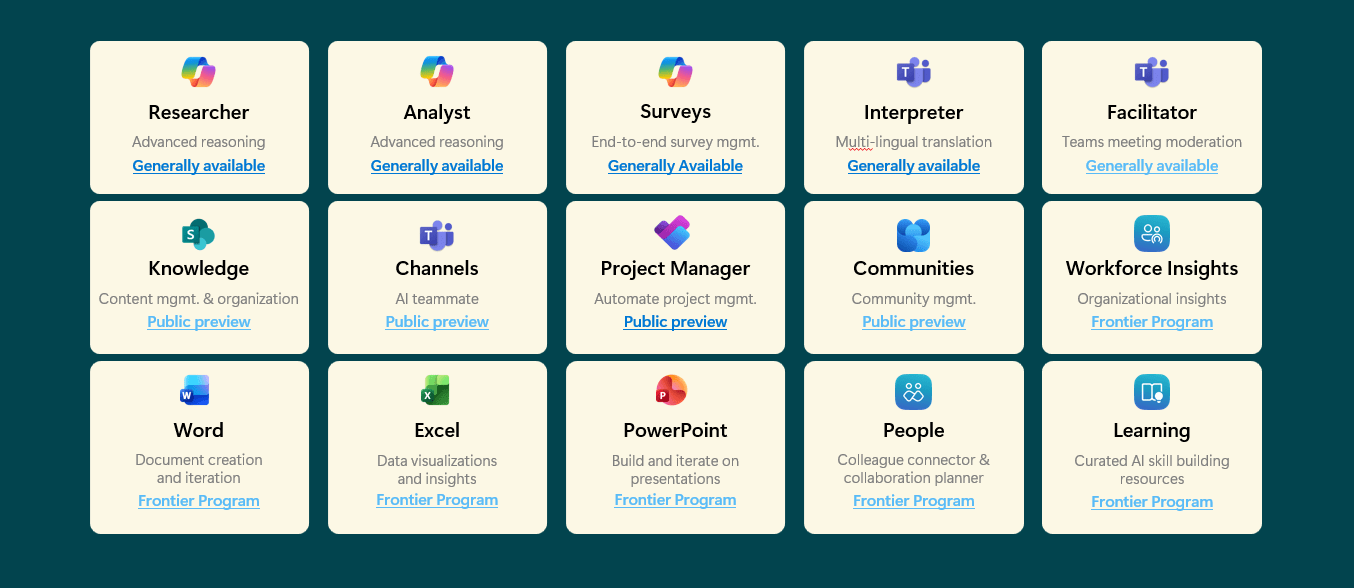
1) Classified by where the agent comes from
- Microsoft agents — built and maintained by Microsoft.
- Partner agents — built by external publishers and integrated with Microsoft 365 Copilot.
- Published by your org — custom agents that have gone through an internal approval/publishing process for broader use.
- Shared by creator — user-created agents shared directly with other people (fast collaboration, but easy to lose oversight if you don’t monitor it).
2) Classified by how it’s made
- Agent Builder (Microsoft 365 Copilot) — quick, end-user friendly “declarative” agents that combine instructions and selected knowledge sources.
- Copilot Studio agents — richer agents that can use actions/connectors and integrate with external systems.
- SharePoint agents — agents scoped to a SharePoint site/library and represented as .agent files.
With all there is a common risk that agent developers can point their agent at broadly accessible content and make it far easier to find (even though permissions are still respected). For example, if you are creating an agent to provide your staff with information about your own products and services, you should probably point the agent at a self-contained location containing only up-to-date and relevant information.
Can users really create their own agents?
Yes. And this is where governance becomes incredibly important.
Initially, Microsoft allowed users to create, share, and even publish agents with very limited governance controls in place. Thankfully, Microsoft has since introduced additional controls and management capabilities. However, organisations still need to actively configure and manage them, and one challenge is that these settings are spread across multiple admin centres.
Your control levers
The following assumes you’re using an account with Global Admin, although Copilot Admin Role holders can perform some of the tasks here.
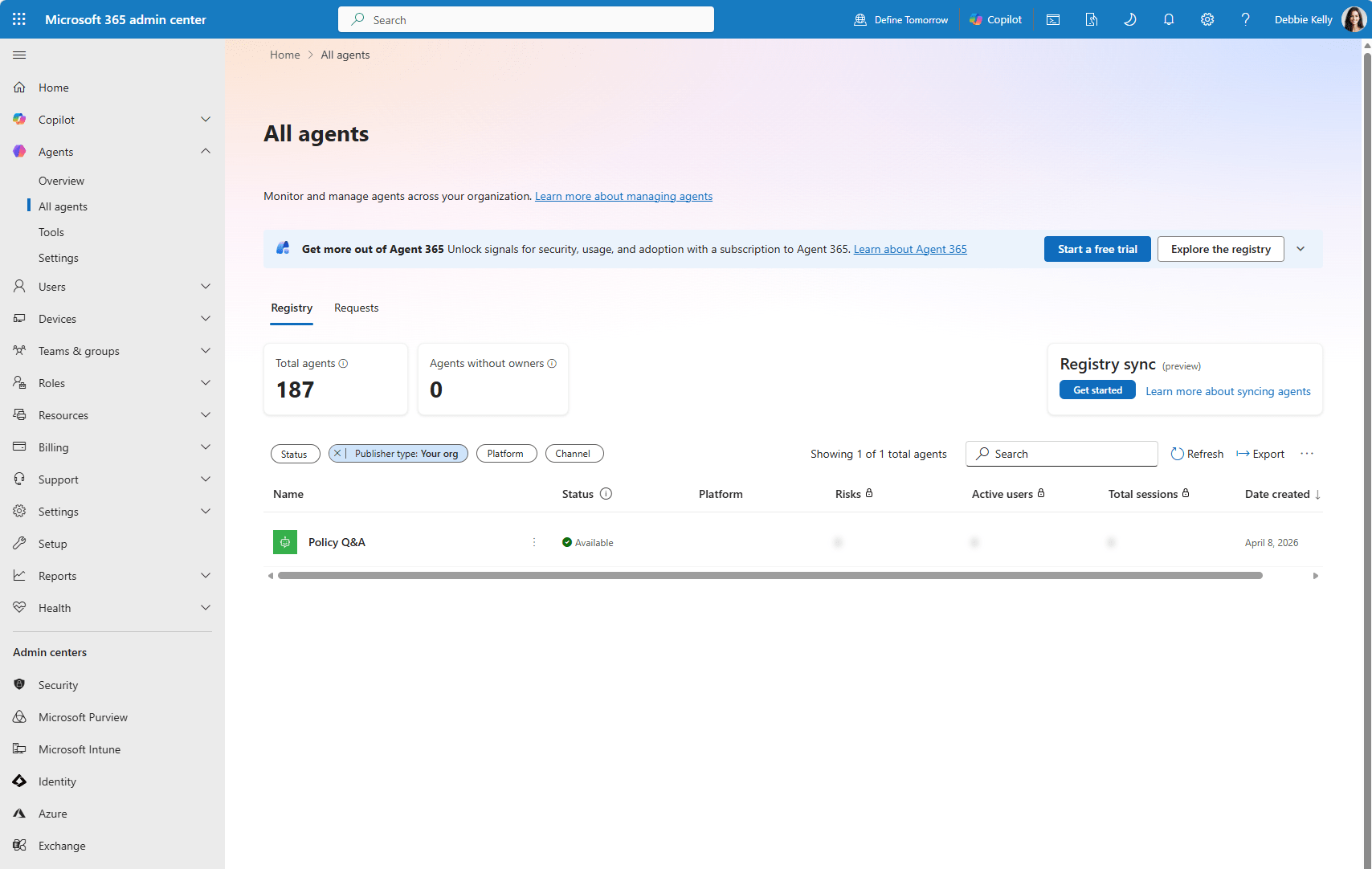
Discovery agents with the Agent Registry
Sign into the Microsoft 365 Admin Centre (admin.microsoft.com). In the navigation on the left, go to Copilot > Agents > All agents.
This opens the Agent Registry and from here you see table for Agent inventory (Microsoft and partner agents) and Shared agents (user-created agents shared within your tenant). You should review both.
Use the Export button to download the full list of shared agents to Excel for offline analysis and audit reporting.
For any agent that looks suspicious or non-compliant, select it and choose Block to immediately prevent users from accessing it.
Control who can access and create agents
Sign into the Microsoft 365 Admin Centre (admin.microsoft.com). In the navigation on the left, go to Copilot > Settings > User access.
Under Agents chose from the following to limit access to approved teams or pilot groups:
- All users (default)
- No users (disables agents entirely)
- Specific users/groups
To control agent sharing specifically, scroll to the sharing setting and configure whether users can share agents outside of their direct team context.
Click Save to Apply.
Approve or reject agents submitted for org-wide publishing
In the Agent Registry, select the Requests tab. This shows agents that Copilot Studio makers have submitted for organisation-wide publication. From here you can approve or reject requests and, if you wish, deploy the agent to the entire organisation or specific users or groups.
Governance matters, but so does opportunity
The answer to AI agents shouldn’t simply be to block everything and move on.
Used properly, agents can deliver huge value across the organisation. In many cases, if users are already experimenting with AI agents, that’s actually a positive sign. It shows curiosity, innovation, and a willingness to improve the way people work.
The goal should be to guide that innovation safely.
Put the right frameworks, governance, and guardrails in place, then help your teams build genuinely useful solutions within those boundaries.
Looking ahead, Microsoft has also announced a new Agent 365 capability designed to help organisations manage agents at scale. It hasn’t launched yet, and details are still emerging, but it’s clearly an area Microsoft is investing in heavily.
This space is moving quickly, and it’s going to be an important one to watch.
AI agents can unlock huge value, but only if they’re governed properly
If you’re unsure what users are creating, sharing or connecting inside your tenant, now is the time to take a closer look.